> For the complete documentation index, see [llms.txt](https://docs.motivewave.com/llms.txt). Markdown versions of documentation pages are available by appending `.md` to page URLs; this page is available as [Markdown](https://docs.motivewave.com/user-guide/workspace/cloud-workspaces.md).
# Cloud Workspaces
Cloud workspaces are hosted on MotiveWave’s server and can be accessed from any computer using the same license key. Cloud workspaces hold all of their data in the MotiveWave™ cloud (including settings, instruments analysis etc.) but also hold a local copy so that the workspace can be opened in “offline” mode. Any changes that are made to the workspace in “offline” mode will be synchronized with the cloud workspace the next time you open the workspace in “online” mode.
#### Synchronization
Workspace synchronization involves uploading new or changed files and removing deleted files from the cloud repository. For efficiency, untouched files will not be included in the synchronization process. Synchronization occurs at the following times:
1. **Startup** – When the workspace is first loaded, it will be synchronized with the cloud to ensure that the latest files are loaded to the local disk.
2. **Interval** – MotiveWave™ will run the synchronization process at a constant interval (**current every minute**) to check for changes and upload them to the cloud. This happens in the background and will not affect your usage of MotiveWave™.
3. **Shutdown** – When closing the workspace, any remaining changes will be synchronized with the cloud.
4. **Manual** – At any point you can force the synchronization to occur by choosing ***Configure > Synchronize Workspace*** from the Console menu bar.
#### Limitations
Cloud workspaces currently have the following limitations:
* Trial Accounts:
* Maximum of 1 Cloud Workspace
* Maximum workspace size is 50 MB
* Paid Accounts:
* Maximum of 3 Cloud Workspace
* Maximum workspace size is 200 MB
#### Creating/Editing Cloud Workspaces
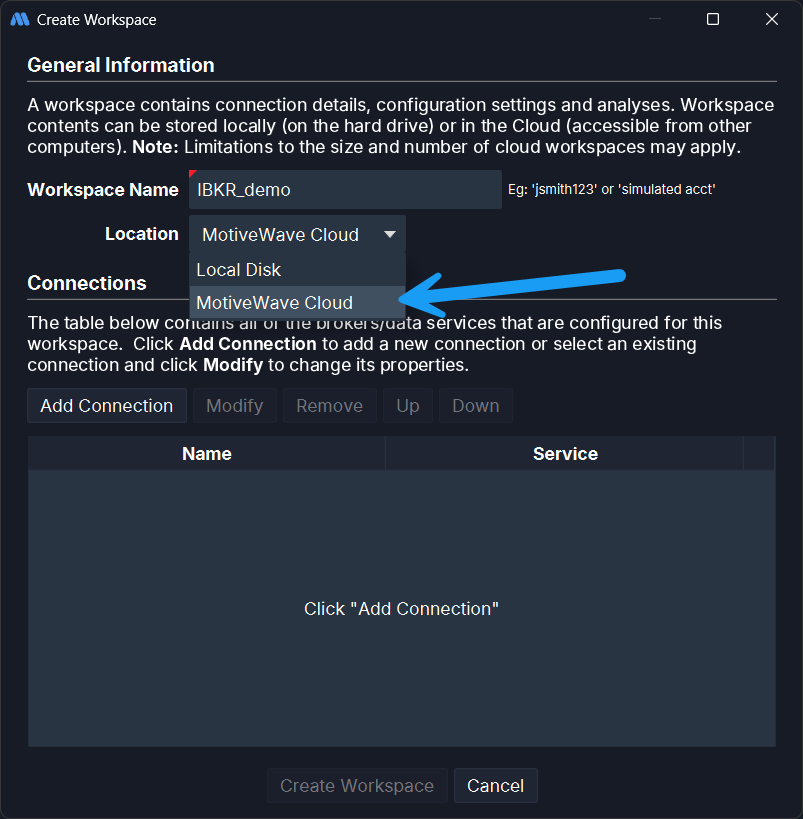
A cloud workspace can be created by choosing “MotiveWave Cloud” from the location drop down in the Create Workspace dialog (see screen shot below). Existing workspaces may also be moved to the cloud in the Edit Workspace dialog. Note: you cannot change the name of a cloud workspace.
The Manage Workspaces dialog has been modified to show local vs cloud workspaces (see below).